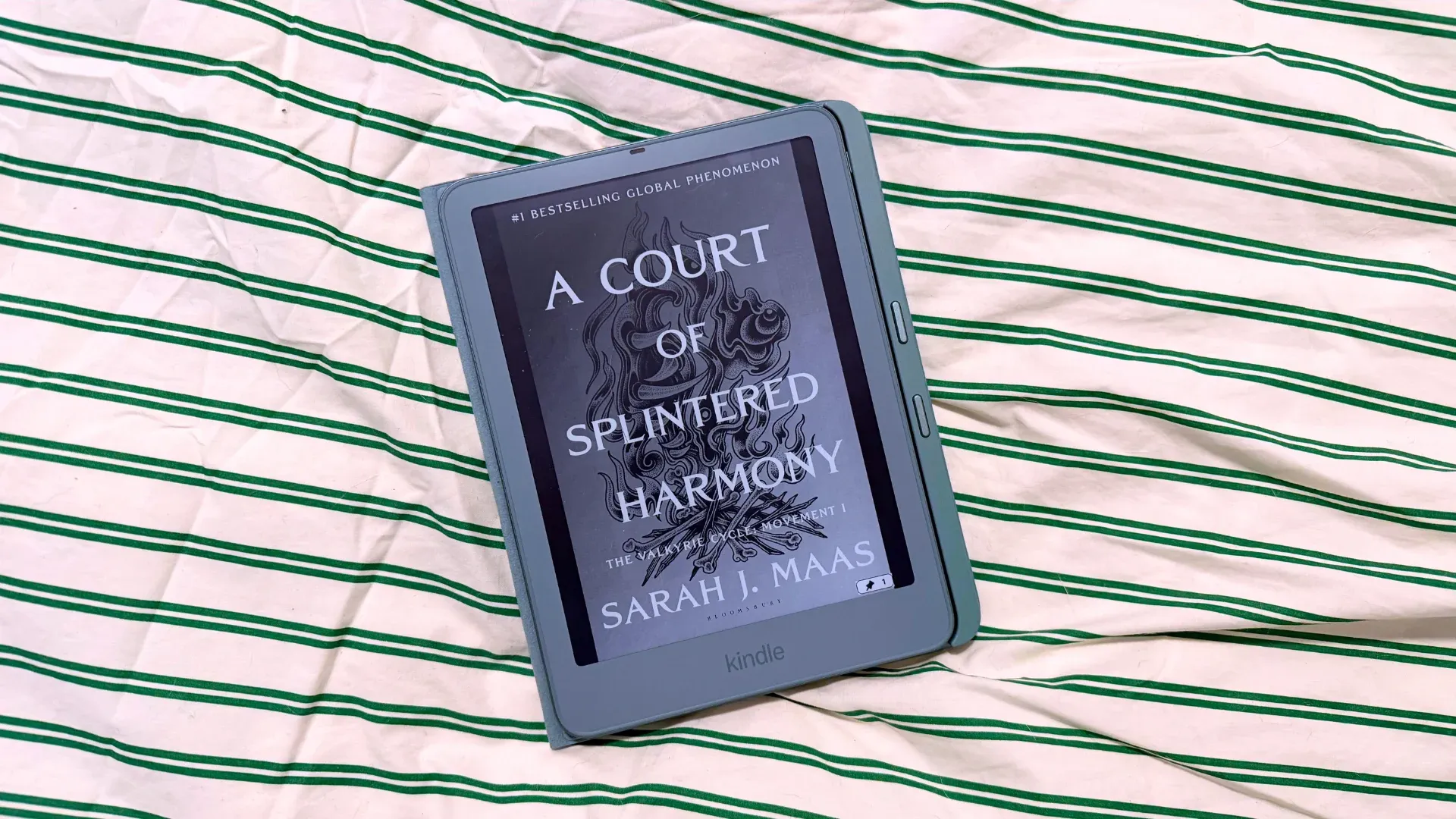
Kindle pinning feature: how to pin text and images for easier reading
The Kindle pinning feature allows e-book readers to save specific images or text snippets for instant reference throughout a book. By highlighting content and selecting the pin icon, users can create a dedicated collection of important elements, such as maps or character descriptions, accessible via a footer menu. This tool is particularly useful for complex fantasy novels where readers frequently need to revisit visual aids. This article explains how to use the pinning tool, its benefits for specific genres, and how to manage image quality on e-ink displays.
November 8, 2026
6 min read
Source: ASHENVOW
How does the Kindle pinning feature work?
The Kindle pinning feature functions as a digital bookmarking system specifically designed for individual elements within a page rather than entire pages. Instead of flipping back through hundreds of digital pages to find a specific map or a crucial piece of dialogue, readers can anchor these items to a persistent menu. This creates a streamlined way to cross-reference information without breaking the flow of reading.
When a user engages with the pinning tool, the selected content is stored in a temporary repository that remains accessible regardless of which chapter the reader is currently navigating. This is a significant departure from standard bookmarks, which typically only mark a location in the text. Pinning focuses on the content itself, making it a functional tool for deep comprehension in dense literature.
The mechanism of pinning
The process relies on the Kindle's existing highlighting interface. By interacting with a specific segment of text or a graphic, the user triggers the device's contextual menu. The pin icon acts as a bridge between the static page and the dynamic footer menu, allowing for a non-linear reading experience that mimics the ability to glance back at a physical book's appendix or map section.
How to pin an image or text on your Kindle
Pinning an image or text is a straightforward process that requires only a few taps on the e-reader's screen. To begin, the reader must navigate to the specific page containing the element they wish to save. Once on the correct page, the user simply presses and holds on the desired text or image to initiate the selection process.
Once the selection is made, a contextual menu will appear on the screen. Within this menu, the user will find a small icon shaped like a pin. Selecting this icon automatically adds the highlighted content to the user's collection of pins. This collection is not limited to one item; users can pin multiple text snippets and images throughout a single reading session, building a customized reference guide for the book they are currently consuming.
Navigating your saved pins
After pinning content, the pins appear as small decals or icons along the footer of the e-reader's screen. To view the full collection, the reader simply clicks on the pin icon in the footer. This action opens a dedicated view where all saved pins are displayed, allowing for quick selection and retrieval. This accessibility ensures that even in the middle of an intense plot sequence, a reader can quickly check a character's name or a geographical location.
Why is this feature beneficial for fantasy readers?
Fantasy readers stand to gain the most from the Kindle pinning feature due to the complex world-building inherent in the genre. Many fantasy epics, such as Sarah J. Maas's recent works, include detailed maps at the beginning of the book. In a physical hardcover, a reader can easily flip back to these maps, but digital reading often makes this transition cumbersome.
The pinning feature solves this specific digital friction. By pinning a map at the start of a novel, a reader can keep that visual reference available at all times. This is equally useful for tracking complex family trees, magical systems, or specific terminology that may be introduced in early chapters and referenced much later. It effectively compensates for the lack of physical page-flipping capabilities in e-readers.
Enhancing immersion through reference
Immersion is often broken when a reader has to stop and search for a reference point. By having pins readily available in the footer, the cognitive load required to navigate the book is reduced. Instead of searching for 'where that castle was located,' the reader simply taps the pinned map, maintaining the emotional and intellectual momentum of the story.
How can you manage image quality and zooming?
While the pinning feature is highly functional, users should be aware of the technical limitations of e-ink technology when viewing images. Kindle devices typically utilize a resolution of 300 ppi (pixels per inch). While this is high for an e-reader, it is generally lower than the 460 ppi or higher commonly found on modern smartphones. Consequently, some images may appear slightly less sharp or more blurry than they would on a mobile device.
To mitigate this, the Kindle interface allows users to zoom into both pinned images and text. This magnification can help clarify details in complex maps or small font sizes. Additionally, adjusting the device's brightness can improve the perceived contrast of an image, making it easier to distinguish between different lines on a map or subtle shading in an illustration.
Optimizing the visual experience
To get the best results when using pins for visual content, readers should consider the following steps:
- Increase Brightness: Higher brightness levels often enhance the contrast of e-ink displays, helping to define edges in images.
- Utilize Zoom: Do not hesitate to use the pinch-to-zoom gesture on pinned images to inspect fine details.
- Manage Expectations: Understand that the grayscale nature and 300 ppi resolution of the Kindle are optimized for text, not high-fidelity photography.
FAQ: Kindle pinning feature
How do I access my pinned items?
You can access your pinned items at any time by looking at the footer of your Kindle screen. A small pin icon will be visible there. Clicking this icon will open a menu or view displaying all the text and images you have previously pinned during your reading session.
Can I pin multiple images in one book?
Yes, you can pin as many images and text segments as you need. Each time you select the pin icon from the contextual menu, the item is added to your existing collection. This allows you to build a comprehensive reference library for the specific book you are reading.
Does pinning work on all Kindle devices?
The pinning feature is part of the Kindle software ecosystem. While availability can depend on the specific software version and model, it is designed to be a standard part of the reading experience on modern Kindle e-readers that support highlighting and contextual menus.
Can I zoom into text that I have pinned?
Yes, the Kindle interface allows you to zoom into both pinned images and pinned text. This is particularly helpful if you have pinned a specific passage that contains small print or if you are trying to decipher a detailed section of a pinned map.
Will pinning items slow down my Kindle?
Pinning items is a lightweight software function and should not impact the overall performance or speed of your Kindle device. The pins are stored as part of the book's metadata and are designed for quick, efficient retrieval during your reading experience.
Key takeaways
- The Kindle pinning feature allows users to save specific text and images for quick reference.
- Pinned items are accessible via a dedicated icon located in the device's footer.
- The feature is highly effective for fantasy readers needing to reference maps or lore.
- Users can zoom into pinned content to improve clarity and detail visibility.
- Kindle resolution is typically 300 ppi, which may result in slightly softer images.
Navigating the digital page
The transition from physical books to e-readers has introduced new ways of interacting with literature. While some elements of the physical experience, such as the ease of flipping to a map, are lost, features like Kindle pinning provide modern solutions to these traditional needs. By allowing readers to anchor important visual and textual data, the Kindle transforms from a simple reading device into a sophisticated tool for deep, uninterrupted engagement with complex narratives. As e-ink technology continues to evolve, these digital shortcuts will likely become even more integral to the reading process.